🪄 AI Layout Generation
AI Layout allows you to transform a text prompt into a fully structured widget hierarchy. Instead of manually dragging and dropping individual components, you can describe the goal of a screen, and Artok Studio will generate the containers, labels, and interactive elements automatically.
🚀 Generating a New Layout
To trigger the layout engine, use the AI Layout tool located in the top navigation bar.
1. The Prompting Process
When prompted, describe your interface needs in natural language. The AI understands industrial, automotive, and consumer electronic contexts.
- Example 1: "Create a vertical sidebar with four navigation buttons for Home, Settings, Logs, and Power."
- Example 2: "Design a centered circular gauge for temperature monitoring with a title label above it."
2. Automatic Hierarchy Construction
Once generated, the AI doesn't just place loose widgets; it builds a logical Hierarchy.
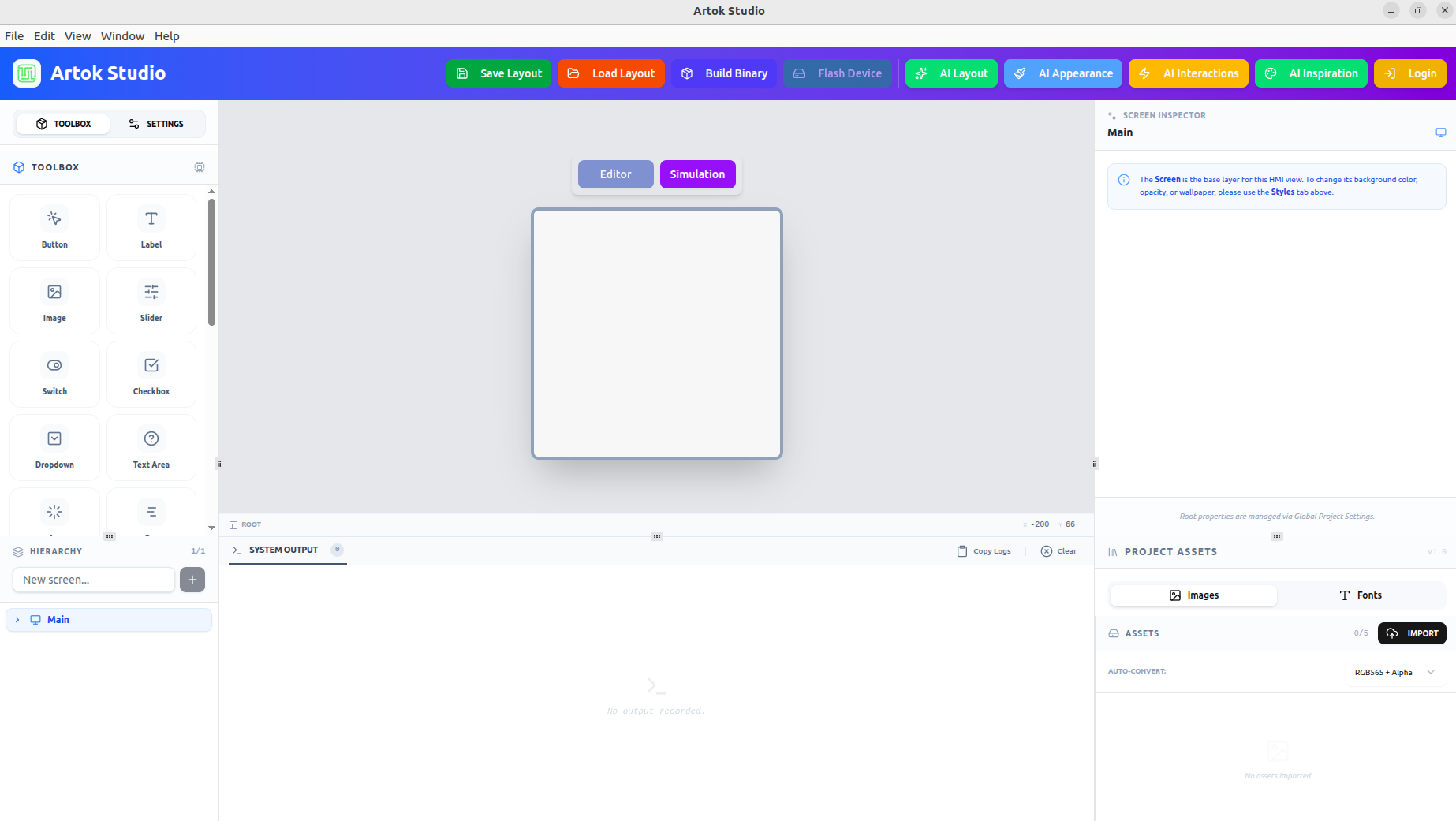 Figure 1: The AI generates structured layouts that appear immediately in the Hierarchy panel.
🏗 Why Use AI Layout?
For embedded systems, layout organization is critical for performance and maintainability. AI Layout follows best practices:
- Containerization: The AI automatically groups related items into containers. This makes the UI easier to move or hide as a single unit.
- Proportional Spacing: It calculates padding and alignment based on your Target Hardware resolution.
- Semantic Naming: Widgets are given logical Instance Names (e.g.,
gauge_tempinstead ofgauge_1), which saves time during Logic and Events configuration.
🔄 Refining the Output
AI Layout is intended to be a "high-speed starting point." Once the layout is generated, you can:
- Fine-tune Geometry: Use the Property Inspector to tweak exact pixel positions.
- Apply Brand Styles: Use AI Appearance to skin the generated layout with your specific colors and textures.
- Attach Events: Open the Events tab to link the new widgets to hardware triggers.
A professional workflow involves using AI Layout to build the structure first, then using AI Appearance to style the elements, and finally AI Interactions to write the code.
Next Steps
Once your layout is structured, define the look and feel:
- AI Appearance — Skinning your widgets with high-fidelity styles.
- AI Interactions — Generating logic for your new layout.