🧠 AI Interactions
AI Interactions is a powerful logic-generation engine that converts natural language descriptions into functional scripts. It allows you to define how widgets behave and interact with each other without manually writing complex Lua code.
⚡ How It Works
The AI Interactions tool (accessible from the Top Bar) works by mapping your intent to the Events tab of the selected widget.
1. Contextual Awareness
The AI scans your Hierarchy to understand the names of your widgets. This allows you to write prompts like:
"When btn_start is clicked, set the value of gauge_rpm to 100."
2. Event Mapping
Once you enter a prompt, the AI determines the most appropriate trigger (e.g., Clicked vs OnValueChange) and populates the Events tab in the Inspector.
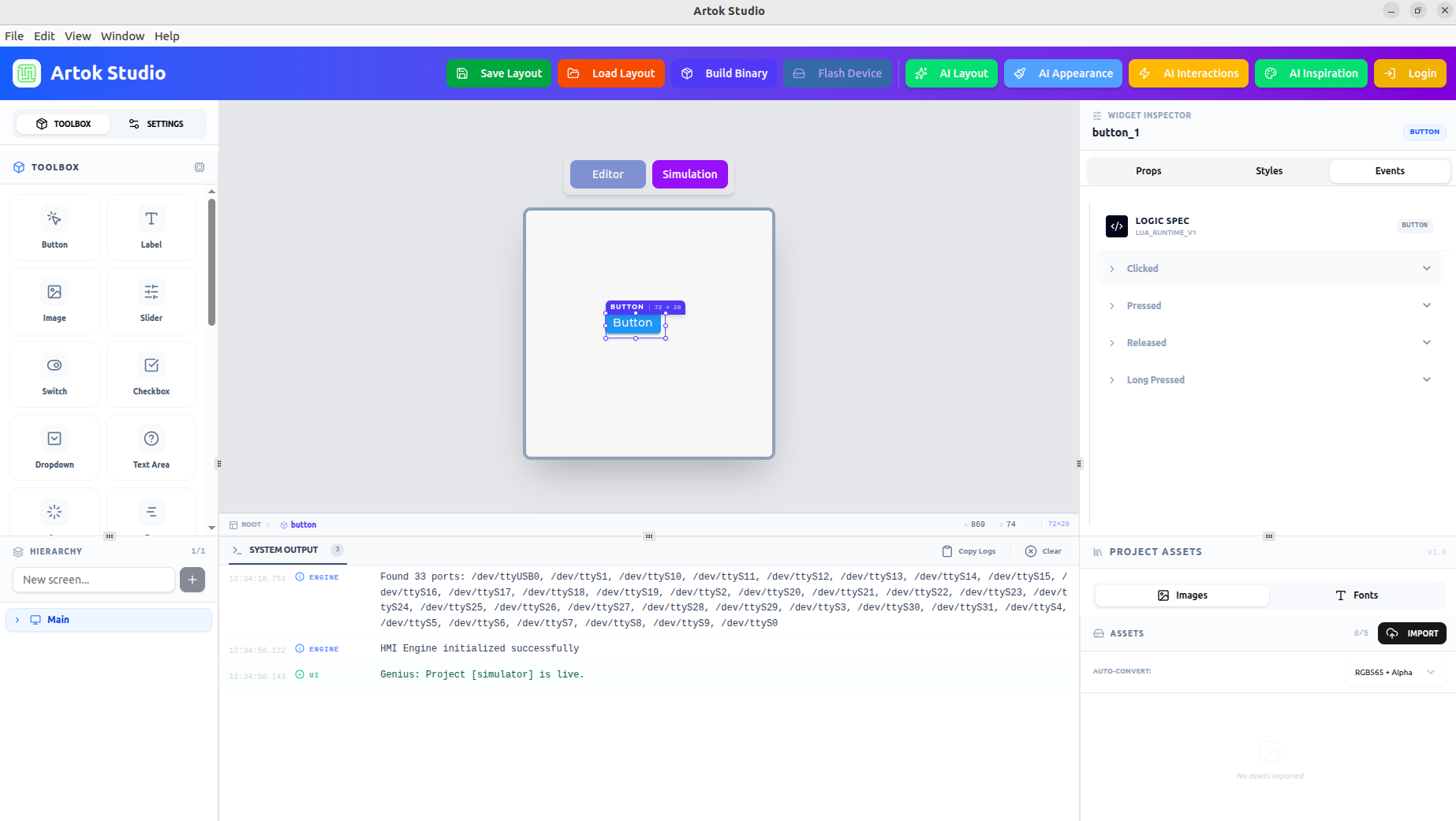 Figure 1: The AI generates logic that is then attached to these event triggers.
🛠 Use Cases for AI Logic
You can use AI Interactions to automate various HMI behaviors:
| Category | Example Prompt |
|---|---|
| Navigation | "When this icon is pressed, switch to the 'Settings' screen." |
| Feedback | "Change the color of label_status to red if the slider value exceeds 80." |
| Math & Logic | "Increment the value of counter_label by 1 every time this button is clicked." |
| Hardware Link | "Send the string 'START_MOTOR' via serial when the toggle switch is turned on." |
📝 Reviewing Generated Scripts
While the AI handles the heavy lifting, the resulting logic is standard Lua. You can always view and edit the generated code to add custom refinements.
- Select the widget.
- Go to the Events tab.
- Click the Edit Script icon (next to the trigger) to open the internal code editor.
Embedded Note: Artok v2.4.0 uses the
LUA_RUNTIME_V1spec, which is highly optimized for memory safety on MCUs like the ESP32-S3 and STM32 series.
💡 Best Practices
- Be Specific: Instead of saying "Update the screen," say "When button_1 is clicked, change the background of Main_Screen to Blue."
- Rename First: For the best results, give your widgets descriptive Instance Names in the Props Tab before using AI Interactions.
- Test Early: Use the Live Simulator immediately after generating an interaction to verify the logic.
The most efficient way to build in Artok is:
- AI Layout to build the structure.
- AI Appearance to set the style.
- AI Interactions to breathe life into the UI.
Next Steps
Now that your logic is defined, see it in action:
- Live Simulator — Real-time testing of your AI-generated interactions.
- Lua Scripting — Advanced manual control for professional developers.