🎨 Property Inspector & Styling
The Property Inspector is a context-aware control center located on the right side of Artok Studio. Selecting any component (e.g., button_1) unlocks three specialized tabs for deep customization: Props, Styles, and Events.
🔍 Widget Inspector Tabs
1. Props (Properties)
The Props tab handles the fundamental data and physical placement of the widget on the canvas.
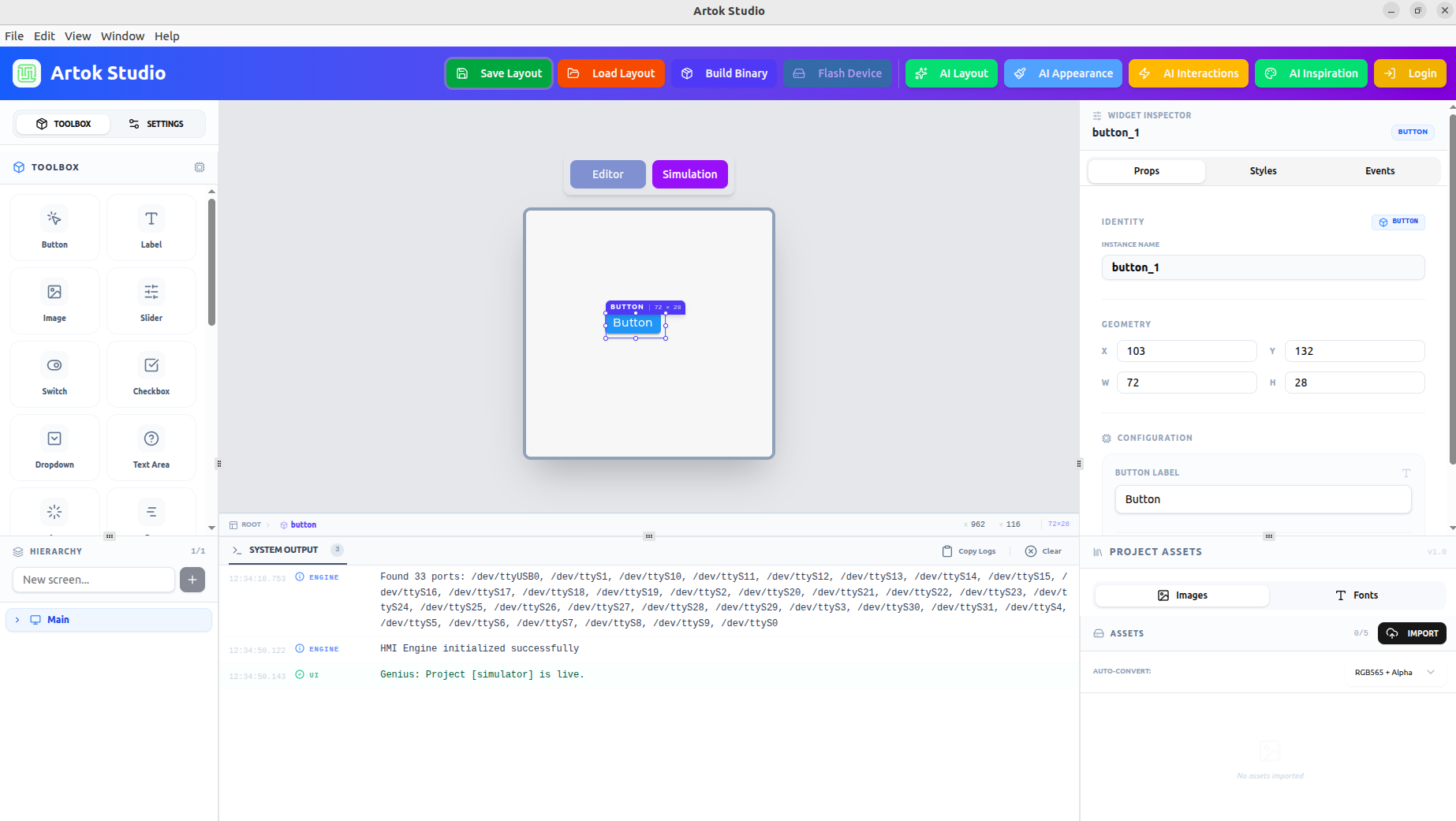 Figure 1: The 'Props' tab showing Identity, Geometry, and Configuration.
- Identity: Define the Instance Name used for referencing the widget in logic and scripts.
- Geometry: Set precise X/Y coordinates and W/H (Width/Height) dimensions to match your hardware resolution.
- Configuration: Adjust widget-specific content, such as the Button Label text.
2. Styles
The Styles tab is where you define the visual "DNA" of your component, including colors and borders.
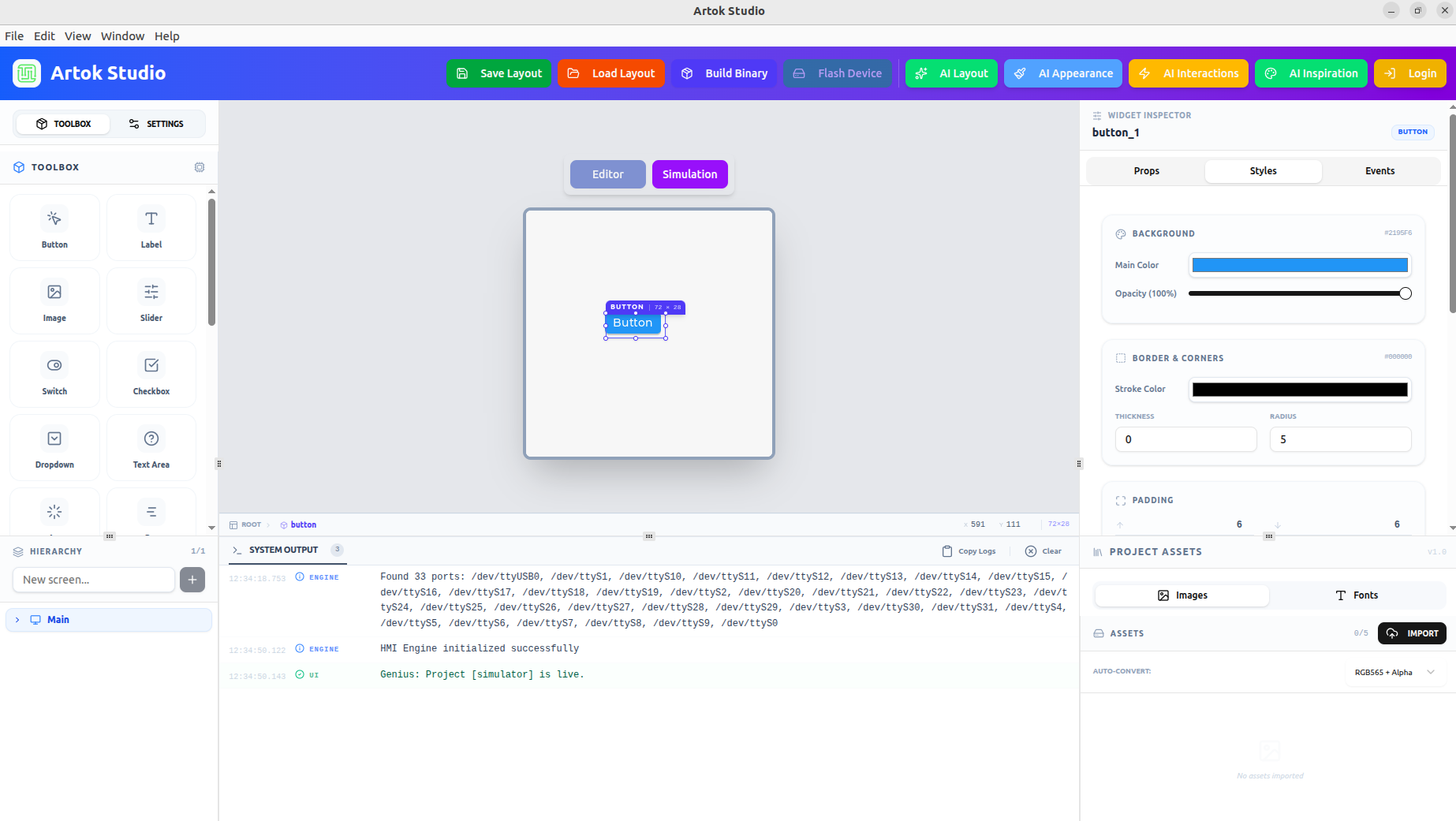 Figure 2: The 'Styles' tab for fine-tuning Background and Borders.
- Background: Set the Main Color and Opacity (0-100%).
- Border & Corners: Define Stroke Color, Thickness, and Corner Radius for modern, rounded designs.
- Padding: Fine-tune the internal spacing of the widget elements.
3. Events
The Events tab allows you to assign interaction logic and link widgets to specialized runtime behaviors.
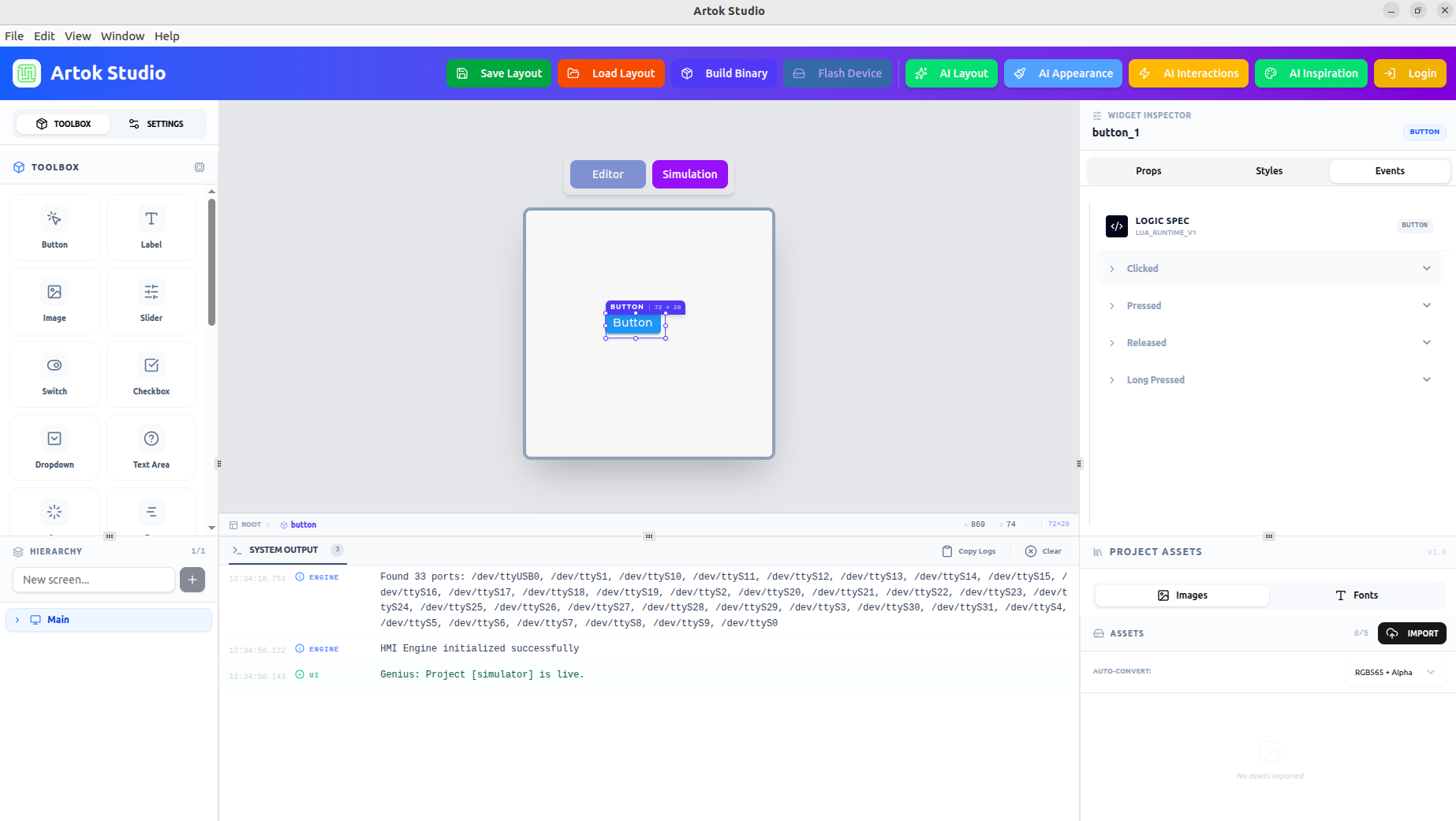 Figure 3: The 'Events' tab showing Logic Specs and interaction triggers.
- Logic Spec: Displays the current runtime version (e.g.,
LUA_RUNTIME_V1). - Interaction Triggers: Assign actions to specific user inputs including Clicked, Pressed, Released, and Long Pressed.
🖼 Project Assets & Optimization
Located at the bottom of the Inspector, the Project Assets panel ensures your media is hardware-ready.
- Auto-Convert: Essential for embedded performance. Select your target format (e.g., RGB565 + Alpha) to ensure images are optimized for your MCU's frame buffer upon import.
- Import: One-click ingestion of new graphical assets and fonts directly into your project.
🧠 AI Integration
The Inspector works in tandem with the AI tools in the Top Bar for rapid prototyping:
- AI Appearance: Describe a look (e.g., "Modern neon blue slider") and the AI will automatically populate the Styles fields.
- AI Interactions: Use natural language to generate the logic found in the Events tab.
You can select multiple widgets of the same type by holding Shift. The Inspector will show common properties, allowing you to update the style or geometry of all selected items simultaneously.
Next Steps
Now that you can style widgets, learn how to organize them:
- Widget Hierarchy — Managing layers and parent-child relationships.