💻 The Canvas & Live Simulator
Artok Studio provides a high-performance, unified environment where design meets execution. The workspace is centered around a professional IDE layout that bridges the gap between visual design and embedded logic.
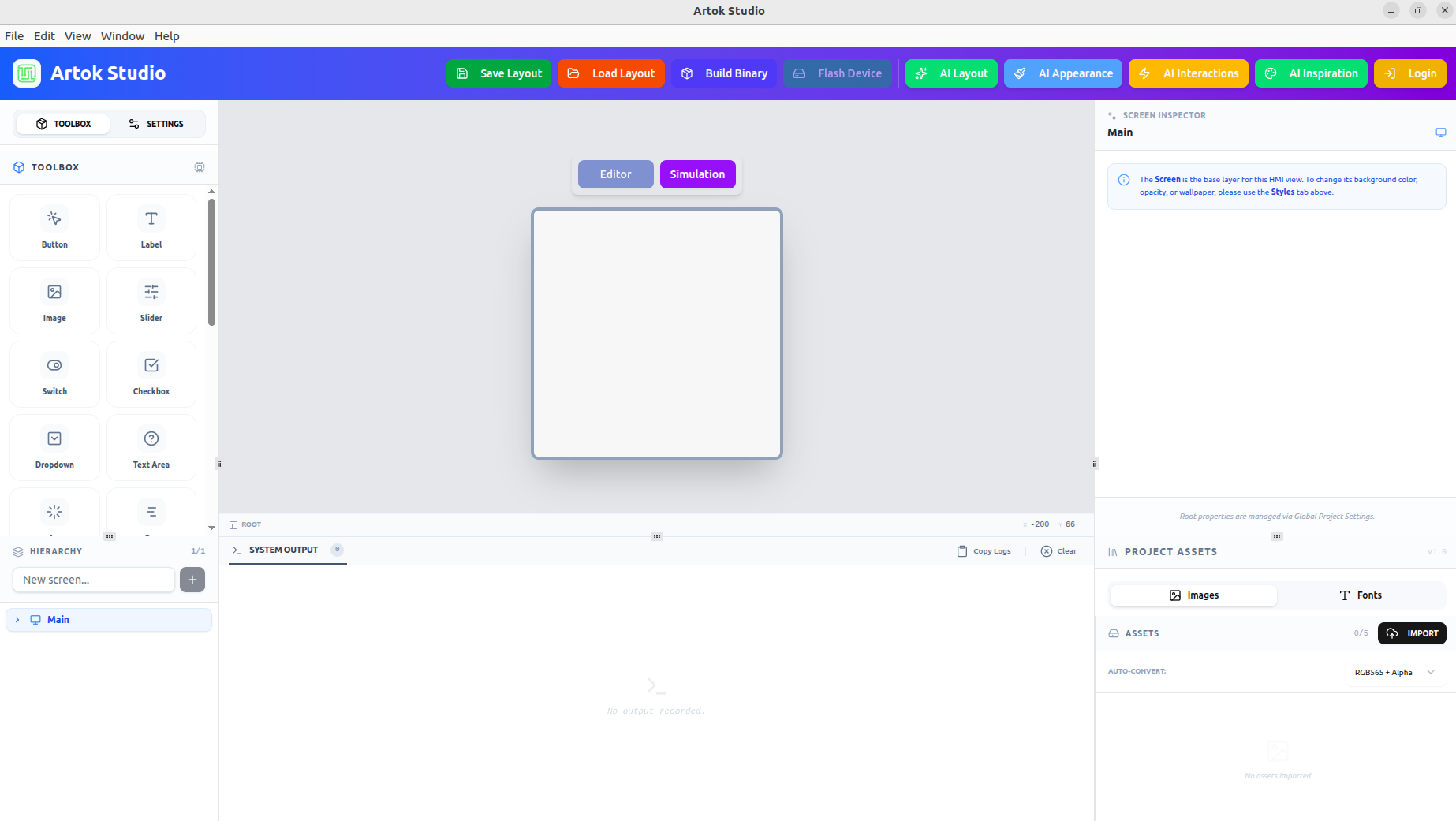 Figure 1: The Artok Studio v2.4.0 Interface featuring the central Canvas, Toolbox, and Inspector.
🏗 The Visual Canvas
The Canvas is your digital workbench. It is a pixel-perfect representation of your target hardware's display, governed by the resolution and color depth defined during Project Setup.
Design vs. Simulation Modes
At the top of the canvas, you will find a dedicated toggle to switch between workflows:
- Editor Mode: The default WYSIWYG environment for dragging widgets from the Toolbox, adjusting layouts, and fine-tuning styles in the Inspector.
- Simulation Mode: An instant transition into the live runtime. This activates all interactive logic, animations, and AI-generated scripts.
🚀 The Built-in Simulator
The Simulator is the "heart" of Artok Studio. Unlike generic design tools, Artok runs a native embedded logic engine directly within the editor.
Why it is Mission-Critical:
- Zero-Flash Debugging: Test your HMI interactions instantly without waiting for long firmware compilation and flashing cycles.
- 1:1 Hardware Mirroring: The simulator utilizes the same drawing algorithms and event handlers as the C-runtime, ensuring visual and logical parity with your physical MCU.
- Performance Monitoring: Use the built-in system output and performance overlays to verify your UI remains fluid (60 FPS) and memory-efficient.
🛠 Workspace Layout
The environment is optimized for a streamlined workflow:
| Panel | Description |
|---|---|
| Toolbox (Left) | Contains all standard and custom widgets (Buttons, Sliders, Charts). |
| Hierarchy (Bottom-Left) | A tree view of all screens and widgets for managing depth and parent-child relationships. |
| System Output (Bottom) | Provides real-time logs for debugging Lua scripts and hardware communication. |
| Inspector (Right) | The context-aware panel for modifying properties, assets, and AI-driven interactions. |
To optimize your workspace, you can undock the System Output or Inspector panels. This is particularly useful for multi-monitor setups, allowing you to view logs on one screen while designing on the other.
Next Steps
Now that you are familiar with the canvas, let's explore how to manage your project assets:
- Property Inspector — Customize widget behavior and appearance.
- AI Layout Generation — Let Artok's AI build your canvas for you.