💡 AI Inspiration
AI Inspiration is a creative brainstorming tool designed to help you visualize different design directions for your HMI project. It is particularly useful during the early stages of a project when you are deciding on a "Design Language" for your hardware.
🎨 Creative Exploration
The AI Inspiration tool allows you to generate conceptual UI mockups based on specific industry themes or hardware constraints.
1. Generating Concepts
Access the Inspiration tool from the Top Bar to generate visual ideas. Unlike the Layout tool, this generates high-fidelity visual references that you can use to guide your manual design or feed into the AI Appearance engine.
- Prompting for Industry: "Show me a modern EV charging dashboard with neon accents and high-contrast typography for sunlight readability."
- Prompting for Style: "Generate a retro-industrial control panel with physical-style knobs and analog needles for a high-end audio controller."
2. From Concept to Reality
Once you find an inspiration style you like, you can use Artok's other AI tools to replicate that look on your actual Canvas:
- Extract Layout: Use AI Layout to build a similar structural hierarchy.
- Extract Style: Use AI Appearance to apply the specific colors and textures from your inspiration to your live widgets.
📐 Design for Constraints
AI Inspiration in Artok Studio is specifically tuned for Embedded Hardware. This means the inspiration it provides takes into account:
- Screen Ratios: It suggests layouts that work for common 3.5", 5", and 7" displays.
- Touch Targets: It prioritizes large, "finger-friendly" touch zones typical of industrial HMIs.
- Contrast Ratios: It focuses on high-readability designs essential for outdoor or industrial environments.
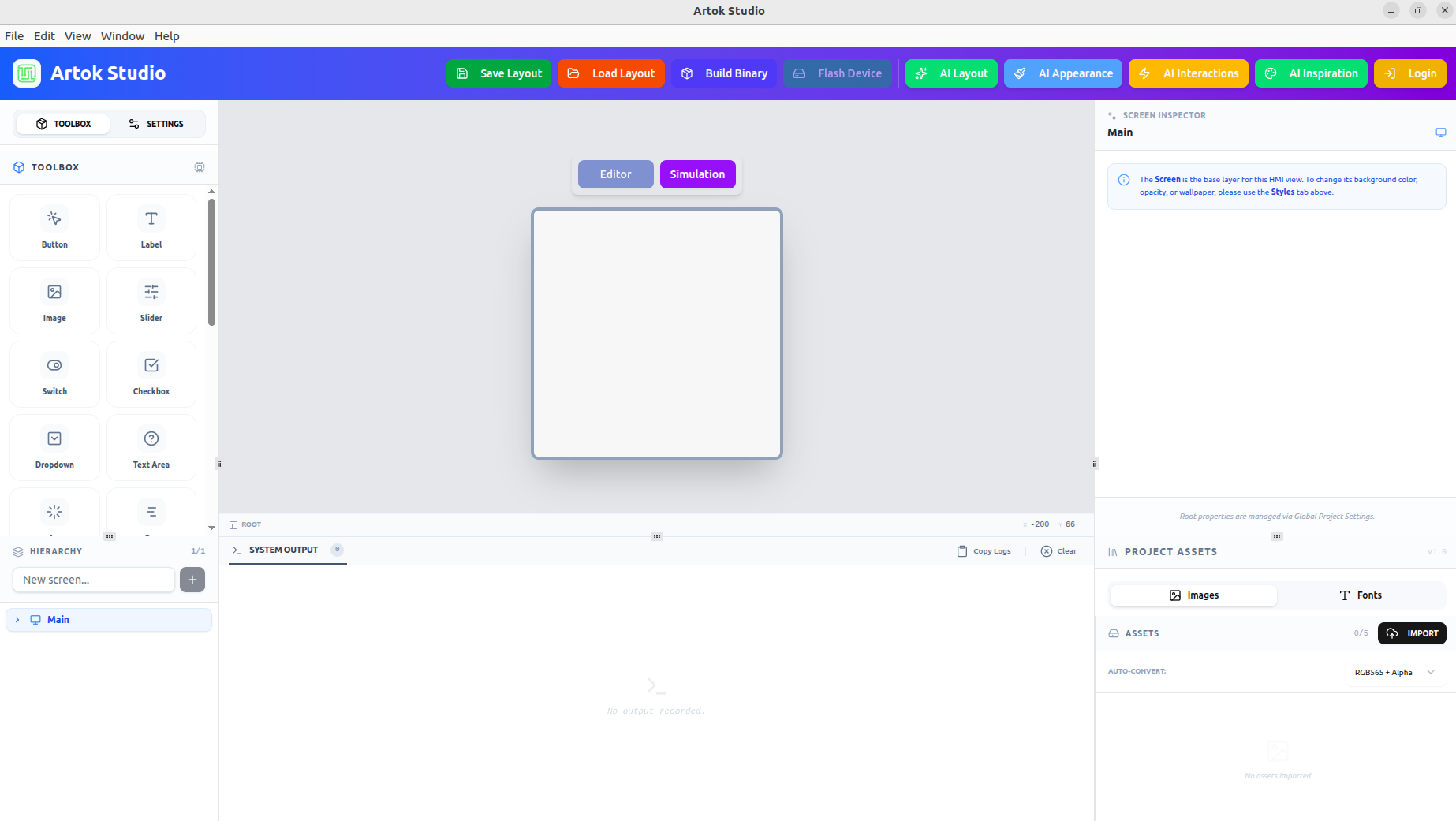 Figure 1: Use the Workspace tools to bring your AI Inspiration concepts to life in the Hierarchy and Inspector.
🛠 Best Practices
- Mix and Match: Use the Inspiration tool to find a "vibe," then use manual adjustments in the Styles Tab to ensure it fits your brand.
- Consider the MCU: While an inspiration might look incredibly complex, remember to balance visual fidelity with the rendering power of your target microcontroller (e.g., ESP32 vs. Raspberry Pi).
- Save Your Prompts: Keep track of the keywords that gave you the best results to maintain a consistent look across multi-screen projects.
AI Inspiration generates visual concepts. To turn these concepts into functional, interactive widgets, you must use the AI Layout and AI Interactions tools.
Next Steps
Ready to turn inspiration into a real project?
- AI Layout — Build the structure inspired by your concepts.
- Project Setup — Configure your canvas to match your hardware's resolution.